Free & open sourceLinux & WindowsMIT
Snip it. Mark it. Paste it.
Free screenshots and screen recordings for Windows and Linux.
PressCtrlAltSto start.
Or paste this in PowerShell:
irm https://raw.githubusercontent.com/CydoEntis/snipux/main/packaging/install.ps1 | iexAlso: portable .exe · Linux .deb · AppImage · all releases


- Windows 10 (2004+) & 11
- Ubuntu 22.04+ · GNOME
- Arch / Omarchy · Hyprland
- Wayland & X11
01 · Annotate
Mark it up where you snipped it.
The toolbar appears on the frozen screen. Draw straight onto it, with no window to open first.
- Pen
- Highlighter
- Arrows
- Boxes
- Numbered steps
- Text
- Blur
Hide sensitive Windows
One switch blacks out passwords, API keys, card numbers and email addresses before the snip leaves your screen. See Marco's message: the address is gone before anything is copied.
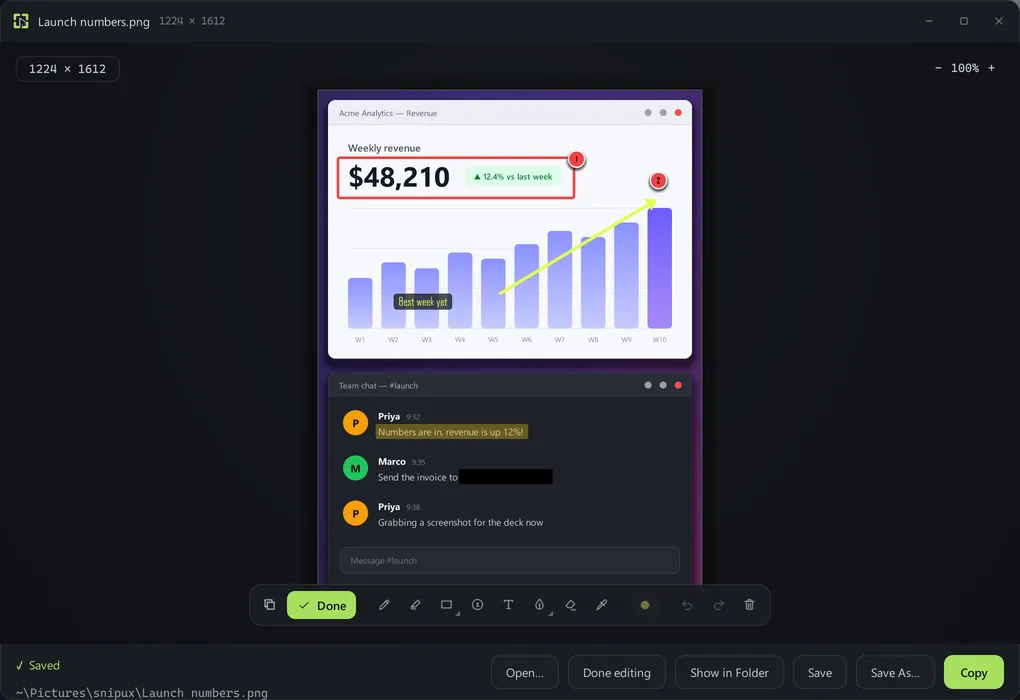 Email hidden automatically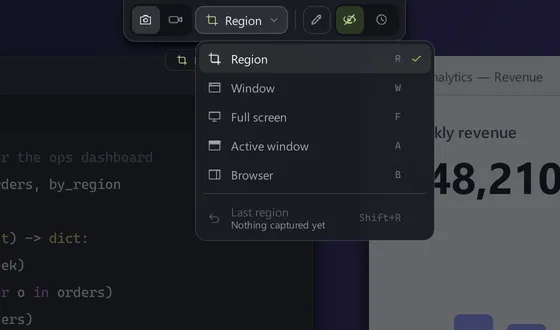
02 · Capture
Pick exactly what to capture.
Drag a region, or press one key while the screen is frozen.
- RRegion — drag out any rectangle.
- WWindow — click the one you want.
- FFull screen — the whole monitor.
- AActive window — the one you were just using.
- BBrowser — just the page, no tabs or toolbars.
- ShiftRLast region — the same rectangle as last time.
03 · Record
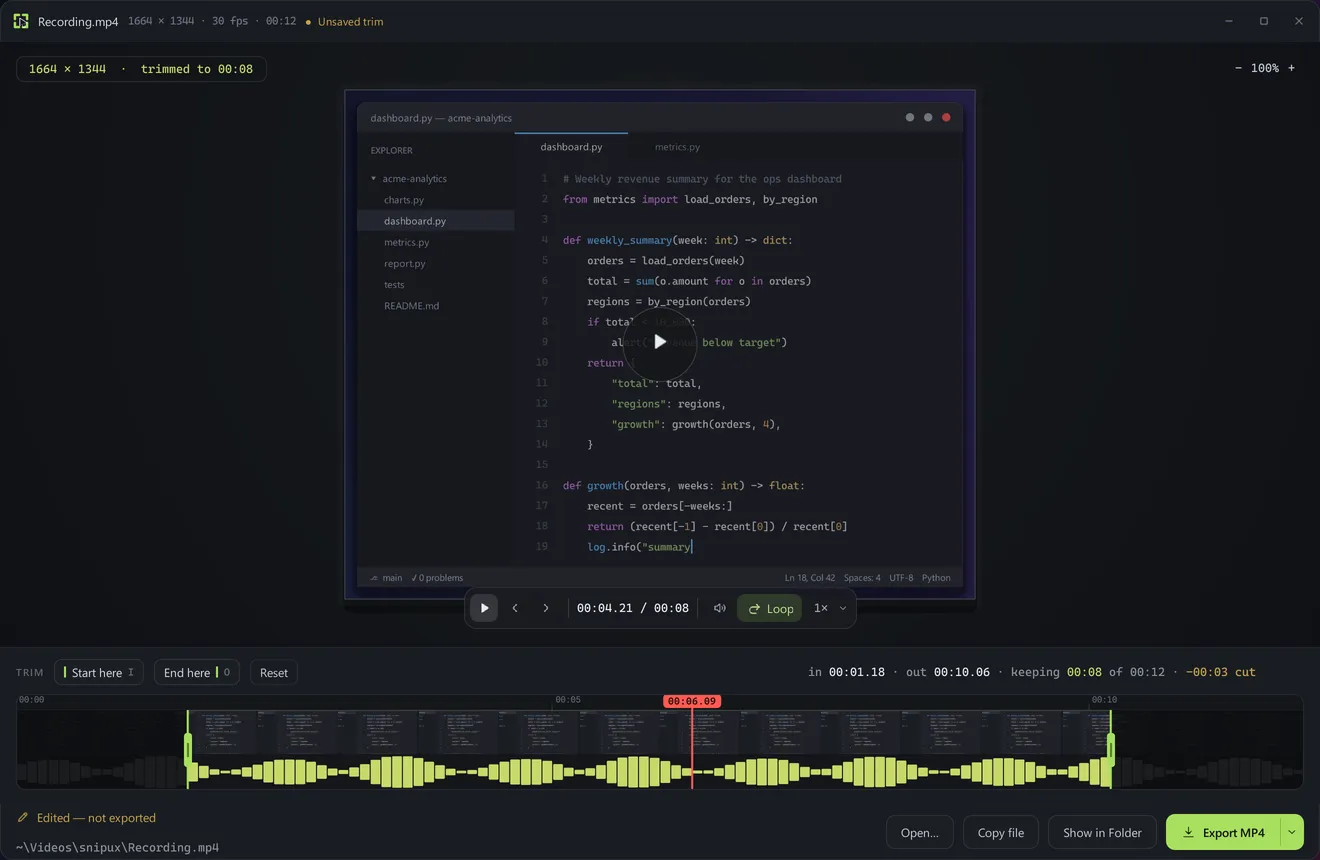
Record it, then trim it.
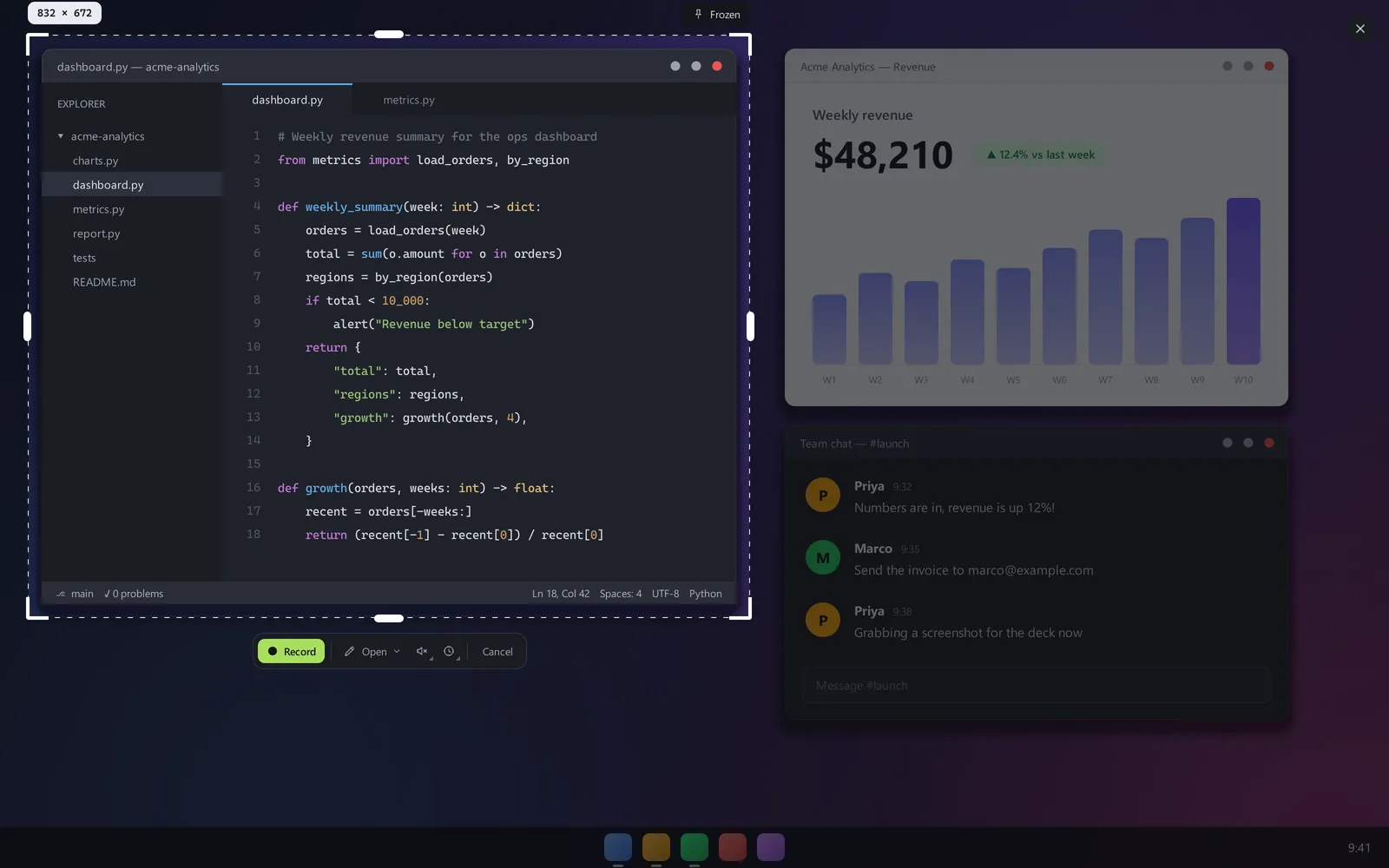
Same shortcut, same selection. Switch to video, set a countdown if you want one, and press Record. MP4 on Windows, WebM on GNOME.
- Export as
- MP4
- WebM
- GIF
- Single frame
04 · Editors
An image editor and a trimmer, built in.
They aren't only for fresh snips. Each one is its own app, so you can open a screenshot or a video from anywhere and mark it up or cut it down.
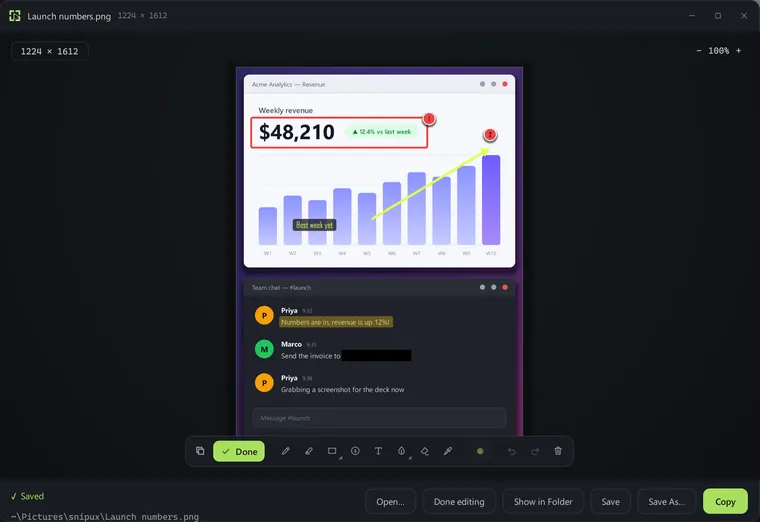
Image editor
Snipux Image EditorBox, arrow, number, highlight and blur any screenshot, not just a new snip. Copy it back out or save it.
- PNG
- JPG
- WebP
- BMP
- GIF
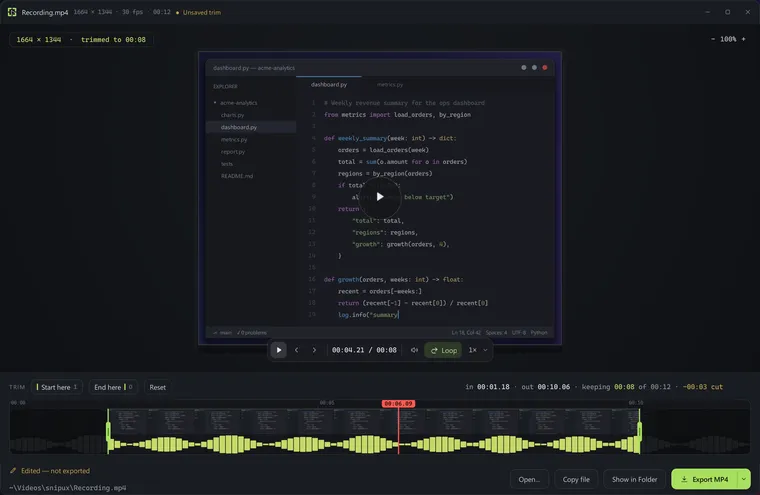
Video trimmer
Snipux Video EditorCut any recording down on the filmstrip, loop the part you kept, and export it as MP4, WebM or GIF.
- MP4
- WebM
- MKV
- MOV
Open them from anywhere
- Start menu or app launcherboth show up as their own apps
- Right-click › Open withon any image or video
- Drag a file inonto an open window
- CtrlOfrom inside either one
05 · Settings
Set it up your way.
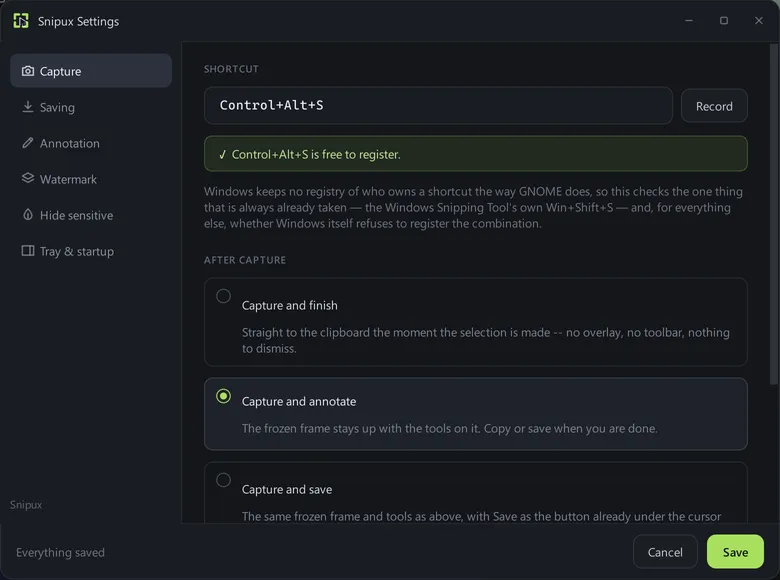
Choose what happens the moment you let go of the mouse.
- Capture and finishStraight to the clipboard. No overlay, nothing to dismiss.
- Capture and annotatedefaultThe frozen frame stays up with the tools on it.
- Capture and saveSame tools, with Save already under the cursor.
Rebind the shortcut and Snipux tells you whether it's free before you save. Add a watermark from the same window.
And the small things.
Watermark
Stamp text or an image in a corner of every capture.
History
trayYour last 10 copies and recent saves, with big previews. Copy one again.
Last region
The same rectangle as last time, for before-and-after shots.
Countdown
A few seconds to open a menu or get your hand off the mouse.
No pointer
LinuxKeep the mouse pointer out of recordings.
Questions
Is it free?
Yes. MIT licensed, no paid tier, no account. The source is on GitHub.
Does it work on Wayland?
Yes. Wayland is the main target, tested on GNOME (Ubuntu 22.04+) and Hyprland (Arch, Omarchy). X11 works too.
Is there a Mac version?
Not yet. Snipux runs on Windows 10 (2004+), Windows 11 and Linux. macOS isn't supported.
Does it phone home?
Only to check for updates, once a day. Nothing is uploaded. Copy history stays in memory and is forgotten when you quit.
Can I change the shortcut?
Yes, in Settings → Capture. Press Record, type the new combination, and Snipux checks it's free.
Found a bug?
Please tell us. Choose Report a problem in the tray menu or in Settings, and Snipux opens a GitHub issue with your version and system already filled in. You read it before anything is posted. Or open an issue yourself.
Is it heavy?
No. It's built on Qt with no heavy dependencies, and sits in the tray until you press the shortcut.